
Client Details
Personal Details
- Navigate to ‘Clients > Fact Find > Personal Details
- Complete client risk profile questionnaire by clicking on Risk Profile button
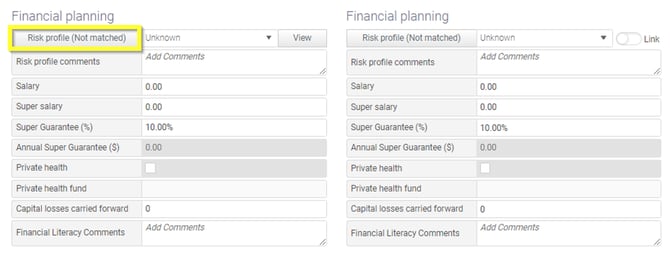
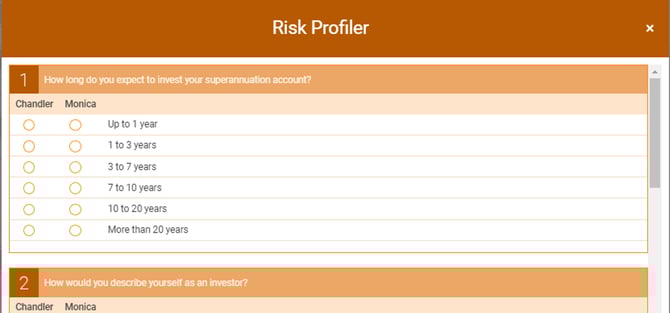
This will open up the Risk profiler where you can complete the questionnaire and print a report from here.
When the result of the questionnaire differs from the one selected in the drop down list, it will show as 'unmatched'.
Compliance
- Navigate to ‘Clients > Fact Find > Compliance
This is the page where you can view and record key compliance items of the client including Ongoing Arrangement legal due dates and reminder dates, Review dates, TFN, Identification numbers, Third party authorization, FSG and Privacy Policy details.
- Ongoing arrangements key dates is only viewable on this page. To edit the date, please navigate to Advanced Admin – FDS Management section.

- Users can choose to manage review at group level.
This will allow the review date for this client group will be managed together. This means that changing the date or review status will update all clients (primary, spouse and entities - if they exist) via the one action. The primary (and spouse) will be listed in a single row where any change of dates or status will be reflected across the group.

Contact Details
- Navigate to "Clients > Fact Find > Contact Details
This is the page where client’s contact number, email address, residential and postal address are recorded.
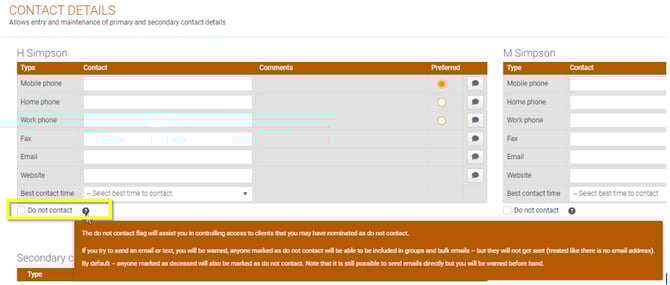
- Any deceased member will be marked as Do Not Contact by default.
It can also be used to control access to clients who you do not wish to receive texts or emails.
- Users can select to Use postal address for advice documents by ticking the below box.

Objectives
- Navigate to ‘Clients > Fact Find > Objectives
This page is where users enter client goals and determine future considerations and the Subject Matters.
Employment and Centrelink
- Navigate to ‘Clients > Fact Find > Employment and Centrelink
This page is where users enter clients employment details including occupation, employment type, years worked, education and qualification, ETP details, leave entitlements, and any centrelink related details.
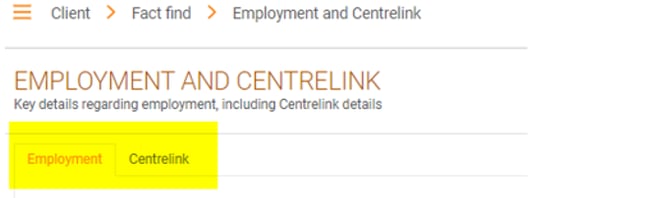
- There are two tabs on this page, toggle between the two for Employment and Centrelink information.
Estate Planning and Health
-
Navigate to ‘Clients > Fact Find > Estate Planning and Health
-
There are two tabs on this page, toggle between the two for Estate Planning and Health information
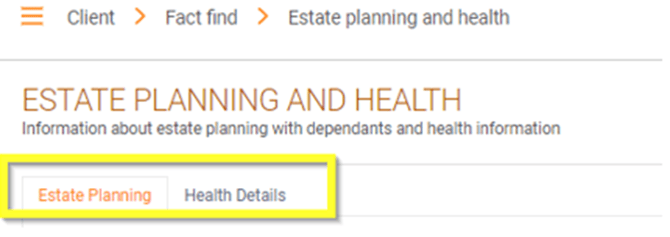
- Dependents can be added at the bottom section of Estate Planning tab. Users can tick Create Relationship box, this will create a relationship record to be saved in the Relationship page of Fact Find.

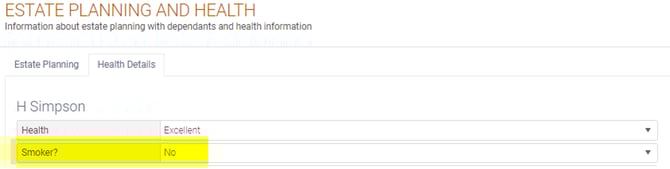
- The smoker status information will flow through to Insurance Module.
Income and Expenses
- Navigate to ‘Clients > Fact Find > Income and Expenses
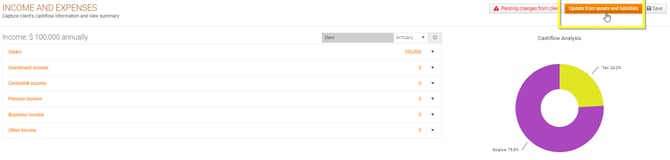
- Update from Assets and Liabilities
This allows users to bring across the income and expenses from information entered in Assets and Liabilities tab, such as loan repayments, super contributions, investment income, pension income and annuities.
Contribution Worksheet
- Navigate to ‘Clients > Fact Find > Contribution Worksheet

Custom Fields
- Navigate to ‘Clients > Fact Find > Custom Fields
This page is where users enter other fact find information for the clients that are customised by the dealergroup or the practice.
Assets and Policies
Personal Assets and Liabilities
- Navigate to ‘Clients > Fact Find > Asset and Liabilities
This page is where users add, edit and update personal assets and liabilities. The assets and liabilities added into this section will flow through into Modelling if a user selects to ‘Update from Fact Find’. This will directly impact both the net worth of your client from a capital perspective, but also impact their cashflow where suitable (i.e., loan repayments).
- You can determine whether these are paid off via principal and interest or interest only
- You can set the interest rate of these loans, and whether they are fixed or variable
- Set the repayment frequency and remaining years
- The system will automatically calculate the minimum repayments, however you also have the ability to override these values
Super, Pension and Investments
- Navigate to ‘Clients > Fact Find > Super, Pension and Investments
This page is where users enter portfolio and investments owned by the client, as well as defined benefit and annuities owned by the client.

Users can load platforms and add investment options by clicking on Load and Options button for a holding.

Investment Options
- Navigate to ‘Clients > Fact Find > Investment Options
This page lists out the investment options and their owners which have been entered from the previous screen in a compact view.
Insurance
- Navigate to ‘Clients > Fact Find > Insurance
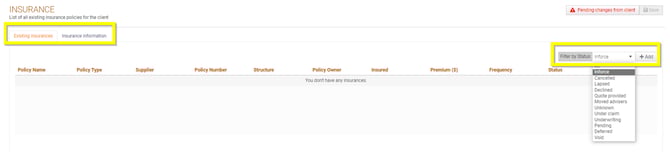
This page is where users capture client’s Life, TPD, Trauma and IP insurance information.
General Insurance
- Navigate to ‘Clients > Fact Find > General Insurance
Associations
Entities
- Navigate to ‘Clients > Fact Find > Entities
This page is used to allow a user to create any relevant Entities related to their clients. These Entities can include Self Managed Super Funds (SMSF), Trust’s, and Companies.
There is no limit to the number of Entities that can be created.
- Add, Delete or Restore entities

- Add associates to the entity
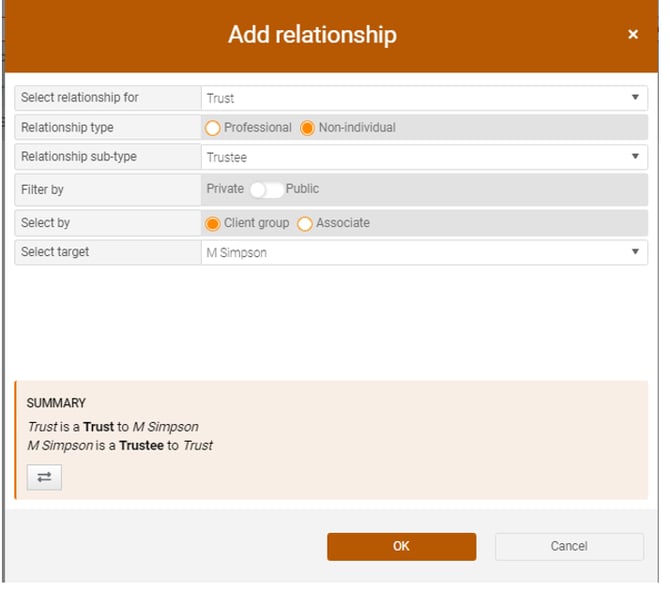
Users can add relationships to the entity such as Accountant, Trustee, Beneficiary, Member etc by adding associate in the below section. 
A member within a client group or an associate that has been added from the Associate tab can be selected here to create the relationship.

Associates
- Navigate to ‘Clients > Fact Find > Associates
This page allows users to add and manager member and practice level associates.
- Associates can be an individual or an entity

- Users can select to make the associates public or non-public when creating the associate.

 Note: Once the added associate is saved, users won’t be able to change the public/non-public status again.
Relationships
- Navigate to ‘Clients > Fact Find > Relationships
This page is where users create professional and personal relationships to the individual clients and entities within the client group.
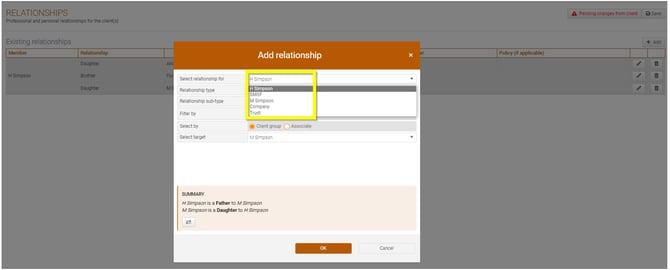
 Note: The dependents added in Estate Planning and Health tab will also appear here if the Create Relationship tickbox has been ticked.
When an entity is selected and a relationship added to it, the information will flow through to Entities tab in the Associate section.
Client Admin
Notifications
- Navigate to ‘Clients > Fact Find > Notifications
This page allows users to send SMS reminders to their clients on their birthday or a day prior to the appointment date.
Please note that the users need to have either a mobile number or registered alpha tag on their user profiles, otherwise these notifications will not be send and the following warning message will appear.

Auto task upcoming notifications can also be activated from this page.
- Reminders allow each practice to send SMS reminders to their clients. By specifying an appointment date and an appointment reminder message for a client, AdviceOS will send the client the appointment reminder a day prior to the appointment.
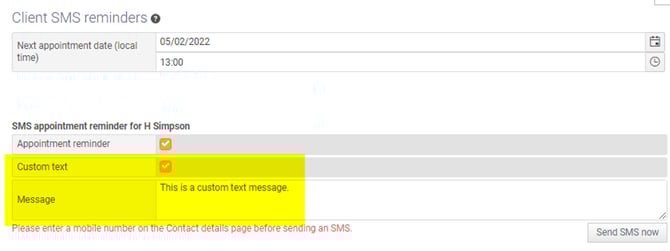
<firstname>: For client's first name
<lastname>: For client's last name
<adviserfirstname>: For adviser's first name
<adviserlastname>:For adviser's last name
<apptdate>: For Next appointment date
<apptlongdate>:: For Next appointment date and time
<appttime>: For Next appointment time
<birthdayordinalage>: For client's oridnal age on birthday, such as 42nd, 31st etc.
<birthdayage>: For client's age in years on birthday
- Similarly, setting a Birthday message for a client will direct AdviceOS to send a birthday message to the client on their birthday. The messages can be customised by using above pre-configured codes.

- Users can select to activate auto tasks to be created based on the date of an activity if a preset task is already assigned to a notification in Settings - Task and Workflow configuration - Event Mapping.

Invoice
- Navigate to ‘Clients > Fact Find > Invoice
This page is where users manage and view invoices and capture client’s bank account details
- Users can click on the action button to manage invoice items or print out the invoice.
Custom invoice templates on a practice level or dealergroup level can be uploaded to be used here.
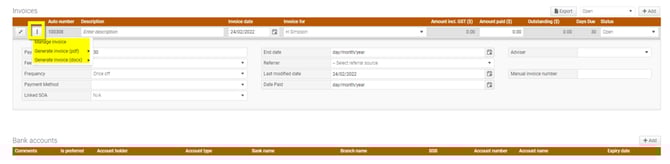
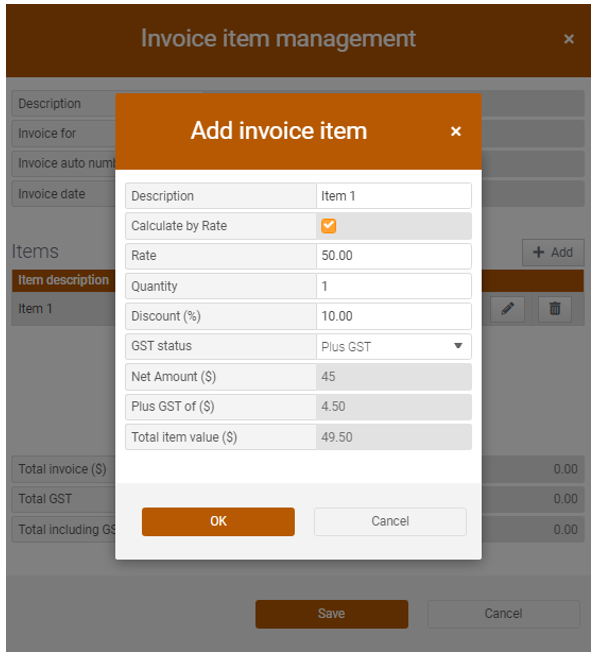
- In Invoice item management, users can add and edit invoice items.
Snapshot
- Navigate to ‘Clients > Fact Find > Snapshot
This page is where users create a snapshot, compare snapshots or merge snapshots.
Click on Eye icon to view the highlighted snapshot.
To compare snapshots, click on the double arrow button and select the snapshot from the list to be compared against.
- Merge changes made by clients via Client Portal
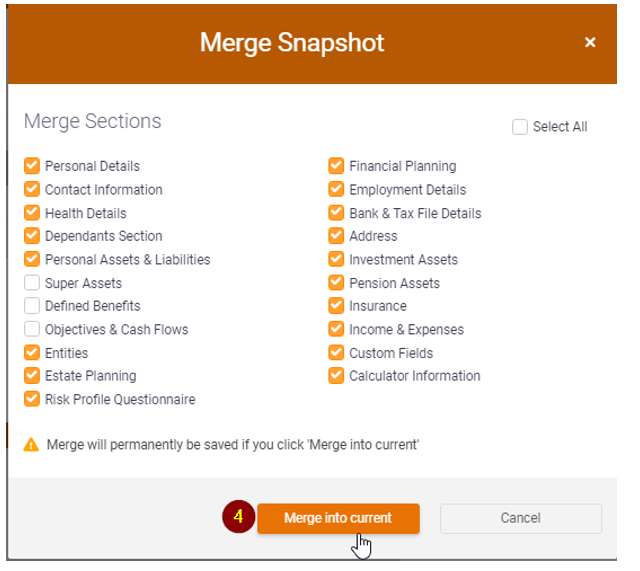
Users can view the changes made by client via client portal and compare them against the current Fact Find details, and select which changes to be merged or rejected. 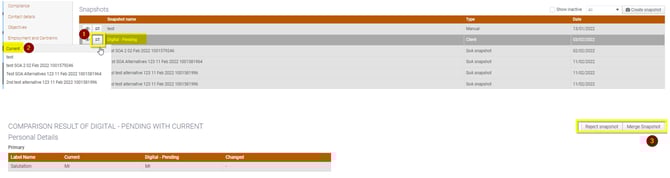
Portal
- Navigate to ‘Clients > Fact Find > Portal
This page is where users give or revoke client portal access for their clients.
Note: Users need to subscribe to Digital Portal to enable clients to log in to the client portal.
If a user has not subscribed to Digital Portal, they may still be able to send out access details emails to clients, but clients will experience an error trying to log in.
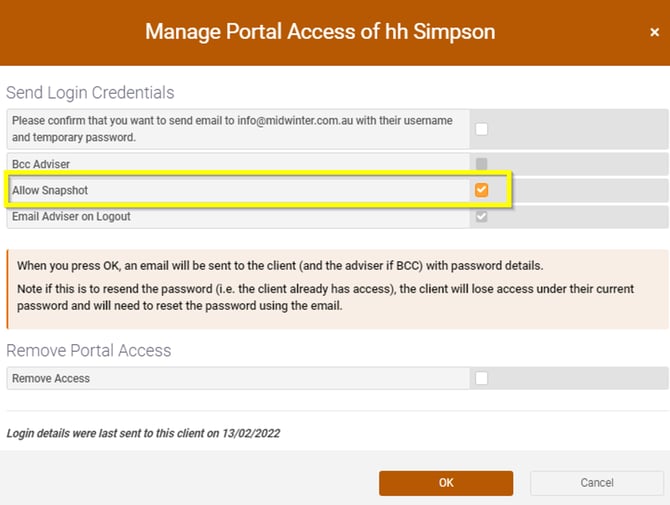
- By ticking Allow Snapshot, it allows a snapshot to be created when clients make any changes via client portal and users have the option to reject or merge the changes into the fact find.
Client Referral
- Navigate to ‘Clients > Fact Find > Client Referral
This page is where referral details for the client group are recorded.