
Introduction
Ongoing Fee Agreements (OFA) allow a licensee or a practice to enter into an ongoing arrangement with their retail clients to provide personal advice and charge a fee in lieu of their services for more than 12 months.
A new module is available in AOS to create and renew Ongoing Fee Agreements (OFA). This module incorporates all the amendments to the obligations relating to ongoing fee arrangements and consents, made in Schedule 1 of the Treasury Laws Amendment (Delivering Better Financial Outcomes and Other Measures) Act 2024.
The module can be found in AOS on Advanced Admin> Ongoing Fee Agreement Management and it consists of the following two sections:
- Manage Agreements
- OFA Report
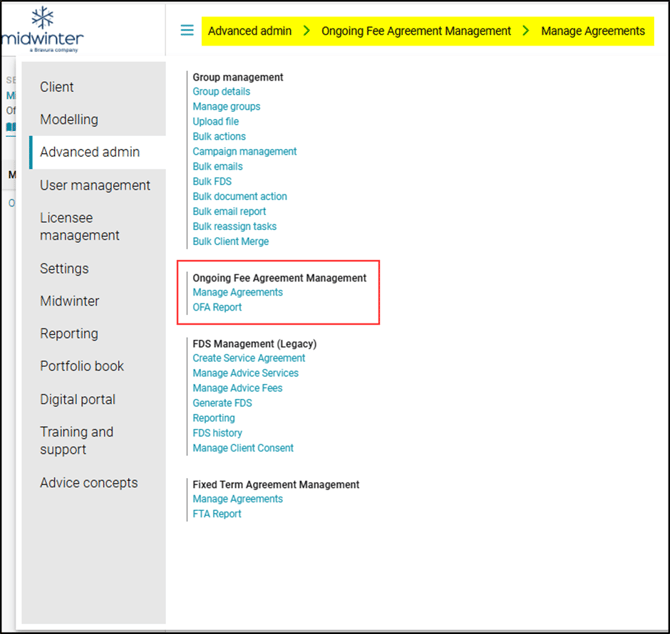
Manage Agreements
Manage Agreements is a single user interface that enables AOS users to both create Ongoing Fee Agreements (OFA) for their clients and renew them for the next 12 months once client consent has been obtained.
How to create an OFA
An Ongoing Fee Agreement (OFA) can be established for either an individual client or a client group. To create an OFA, select the client or group from the drop-down menu on top and then click ‘Create Ongoing Fee Agreement’ button.

 The Create Ongoing Fee Agreement button will be disabled if the client already has an existing Ongoing Service Agreement (OSA) at either the member or client group level within FDS Management. The button will only be enabled once the OSA contract under FDS Management is cancelled to prevent duplication of contracts.
The below message will appear to confirm that you will be creating a new ongoing fee agreement at a member level. Click ‘Yes’ to create a new ongoing fee agreement (OFA).
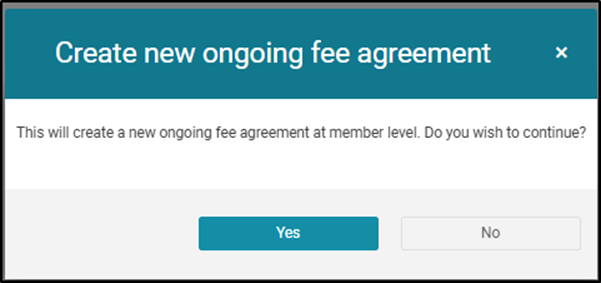
 If you elect to create a joint agreement, a message will appear confirming that if you continue you will be creating an ongoing fee agreement at a client group (joint) level.
Entering details for the OFA
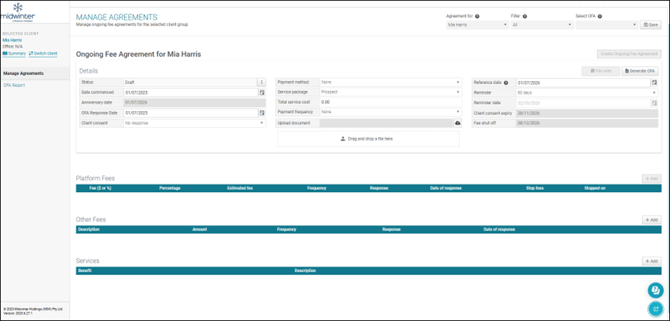
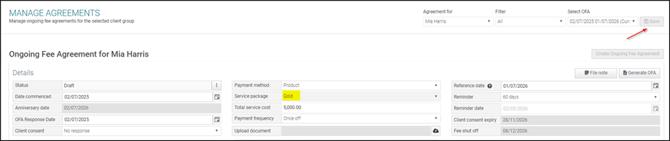
Enter the details relevant to the contract and press ‘Save’ on top right.
Information about the functionality of some of the key fields is listed below:
- Date commenced: Shows the date the contract is created and can be amended prior to publishing the contract.
- Anniversary date: The 12 months anniversary date is automatically calculated by the system based on the date commenced.
- Payment Method: Select the relevant payment method from the drop-down menu that will be used to pay the fees.

Tip: If fee is being charged through a platform, enter the platform and the fee details under the Platform Fees section by using the +Add button.

- Service Package: Select the service package from the drop-down menu.
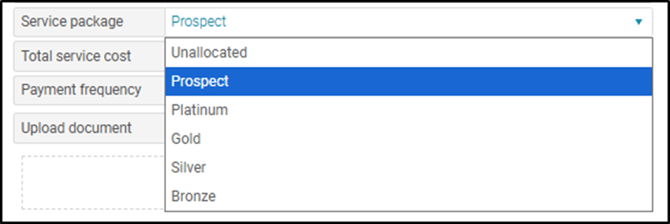
 Once the contact is saved, services listed under the service package will automatically prepopulate under the Services section. You can include additional services to the list by using the +Add button.

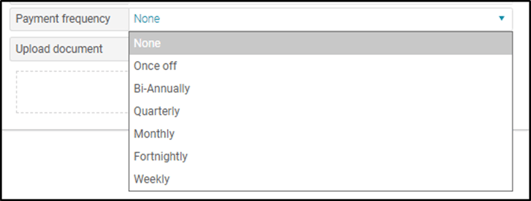
- Payment frequency: You can choose the payment frequency by selecting the relevant option from the drop- down menu.
- Reference date: By default, this field will show the same date as the anniversary date. This can be amended by the user, if the client and the fee recipient have agreed on a different reference date.
- Client consent expiry: The date is automatically calculated by the system and is 150 days from the reference date.
- Fee- shut off date: The date is 10 business days from the client consent expiry date and is automatically calculated by the system.
Once the relevant details are entered, press ‘Save’ button in the top right corner.
Generating the OFA
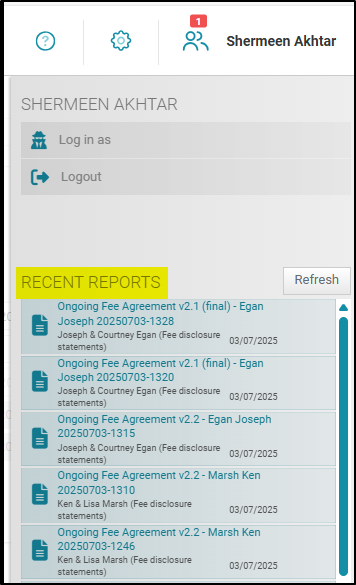
At this stage, you can choose to either use the default Midwinter template or use your own custom OFA template. The Midwinter Ongoing Fee Agreement template is a single template that can be used for the following purposes:
- Enter into Ongoing Fee Arrangement with the client.
- Receive client consent for the deduction of fees.
- Obtain client consent for the deduction of any fees from their platform/s.
- Obtain client consent for the OFA renewal.
To use a custom template, it must first be uploaded to AOS at either the Practice or Licensee level, with the plan type set to ‘Client – Ongoing Fee Agreement’.
Publishing the OFA
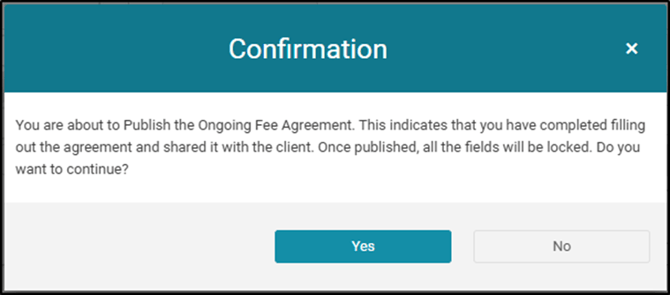
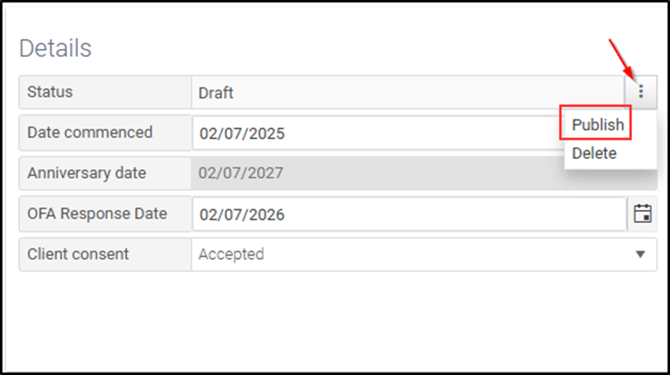
To move the OFA from the Draft status to Published, click on the three vertical dots and select the Publish option.
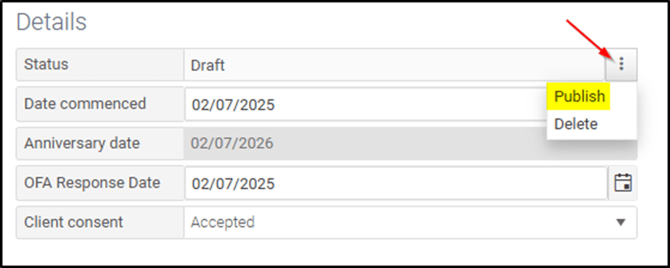
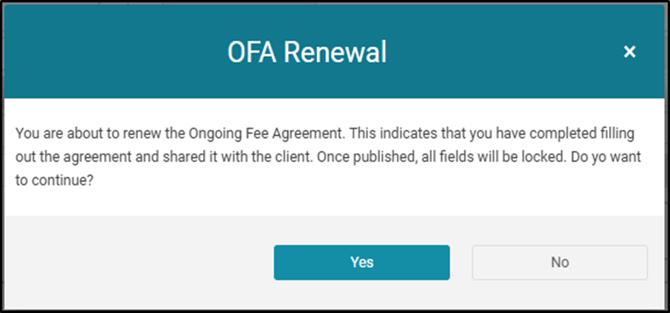
When the publish option is selected, the below pop- up message appears.
Renewing the OFA
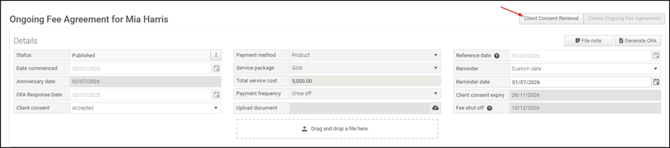
When the OFA is due for a renewal, you can click on the Client Consent Renewal button.
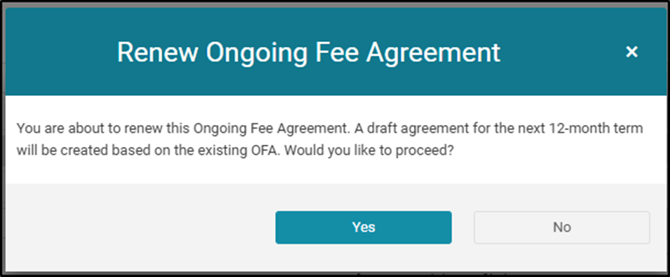
The below pop- up message will appear. Press Yes to proceed:
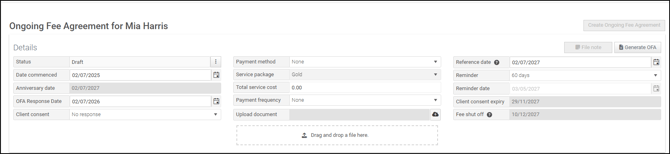
Follow the same steps for entering the details into this draft agreement as were used when the agreement was initially created.
Users will be able to amend certain fields and sections during the renewal phase of the OFA which are listed below:
- OFA Response date- The OFA response date for the renewal does not change the Date commenced.
- Client consent
- Total service cost
- Reference date
- Reminder
- Reminder date (only for Custom date)
- Platform fees- +Add button will appear and user will be able to edit all the fields.
- Other fees- +Add button will appear and user will be able to edit all the fields.
- Services- User can add services to the existing Service Package by using the +Add button.
After entering the required information, press ‘Save’ and use the Generate OFA button to generate and issue the contract for client consent renewal.
Once the client provides the consent to continue the ongoing fee agreement for the next 12 months, go to the three vertical dots and select ‘Publish’ and then click Yes in the OFA Renewal message to publish the renewed contract.
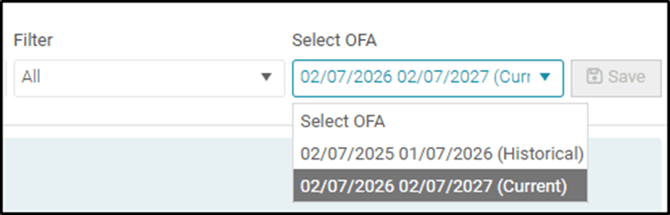
When the renewed OFA is published, it will show up as Current and the previous OFA term will show as Historical in the Select OFA drop down menu in the top right corner.
Modifying the status of the OFA
After the OFA/ OFA renewal is published, you will have different options available to further modify the status of the agreement, should the need arise.
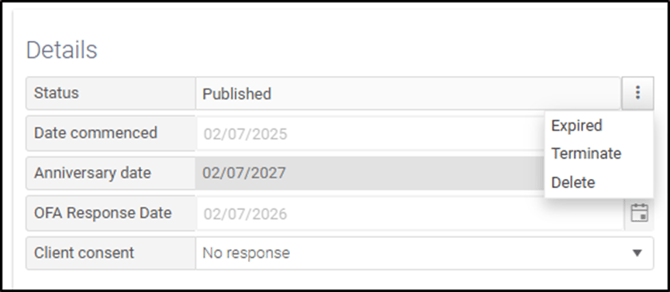
Expired- This status can be chosen if the client consent expiry date has passed and the OFA has not been renewed.
Terminate- The status indicates that the OFA has been terminated either by the client or the adviser, prior to the client consent expiry date.
Delete- This option will change the status of the OFA to inactive.
File Notes & Upload Documents

 button to upload them from AdviceOS or your computer. Alternatively you can also use the drag and drop functionality to drop the file into the designated area to upload.
OFA Report
