Introduction
Midwinter has been providing product comparison tools since the release of our Reasonable Basis comparison tool in 2007.
Overview
Product Comparison can be used in conjunction with our Total Portfolio Analysis (TPA) feature for product comparisons and projection analysis.
You can create product comparisons for:
- Super
- Pension
- Super (Rollover) to Pension
- Investment
Product Comparison provides users with improved outputs and analysis to help advisers meet their best interest obligations.
Product Comparison also allows users to compare the following scenarios (this functionality is coming soon):
Analyse the impact of transferring Super to SMSF:
- Rolling retail funds into an SMSF
Comparing non-individuals including:
- Company
- Trust
- SMSF
Product Comparisons now resemble Total Portfolio Analysis (TPA) in its design and functionality. It includes all of the functions of the existing Product to Product features, with the following enhancements:
- Compare existing, recommended and three alternative products
- Create Hypothetical platforms with investment portfolios to provide a faster way to compare platforms before making a recommendation, and populate reports demonstrating like for like research
- Selecting products to include in comparison will no longer impact the products shown in the Total Portfolio Analysis (TPA)
- Compare SMSF, companies or trust entities (coming soon)
Comparisons
Settings
Your clients’ current products will flow through from the Fact Find and the Total Portfolio Analysis into the new Product Comparisons feature.
The settings page in Product Comparisons allows users to create comparisons for
- Super Products
- Pension Products
- Super (Rollover) to Pension Products
- Investment Products
Create Comparison - select the client and type of product comparison users want to perform based on the below selection:
 Note that for a Super to Pension recommendation, the tool assumes that a pension product will be recommended
Once you have selected the type of comparison you would like to perform, your client’s current products will flow through from Fact Find and TPA. Product Comparisons are similar to the filters in TPA in that only relevant platforms will be displayed.
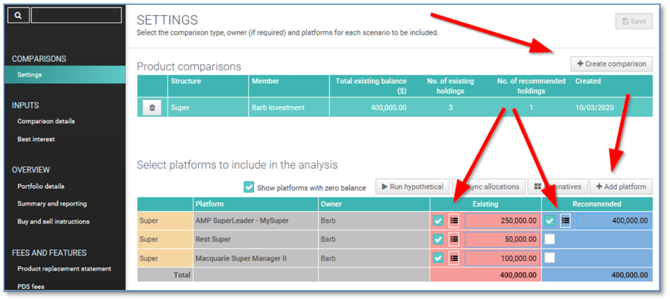
From the above screen, you can manage recommendations, create new platforms, and ensure the existing and recommended balances are aligned.
If you need to insert a new platform, you can select the ‘+Add platform’ button.
If you would like to delete the platform, you would need to go to total portfolio analysis and delete the platform. Another alternative would be entering a “0” in the unwanted platform and untick “show platforms with zero balance”.
Adding investment options
You can add investment options in the same way as in Total portfolio analysis (TPA).
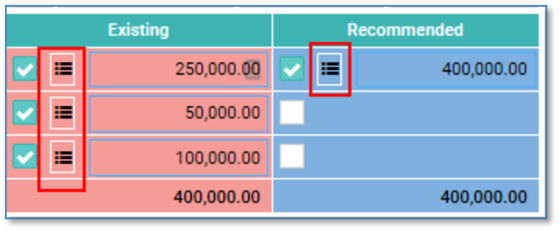
To do this, click on the three lines next to the platform balance, and it will display the investment option screen.
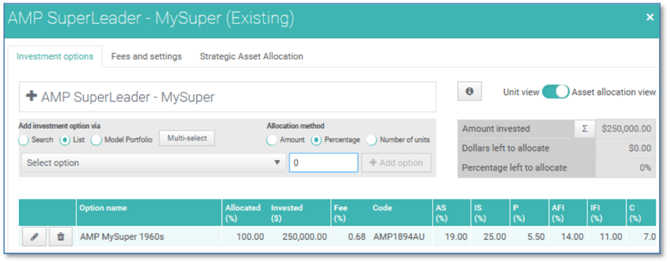
 If you are looking for ASX shares, change the platform to access another range of investments such as ASX shares. Click on the “+” button then change the select base platform to ASX 200 or ASX ETF.
Adding alternative scenarios
You can store and analyse up to three different alternative scenarios. To do this, click on the Alternatives button and select how many scenarios users would like to analyse.
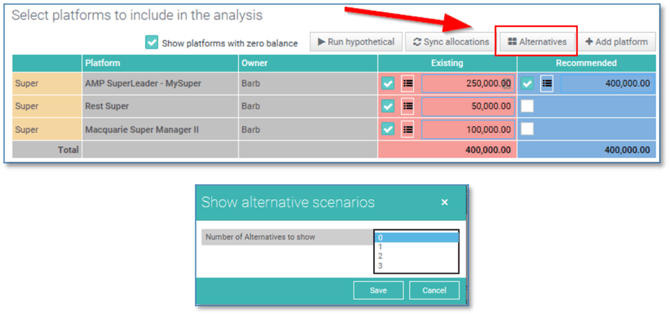
The green columns represent the alternative scenarios.
Syncing Allocations
If you are recommending multiple platforms, you can also use the sync button to allocate the platform balances to the required recommended platforms.
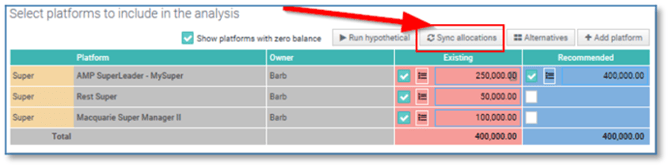
There are a few actions that can be used to allocate balances across a recommended platform:
- Split based on scenario platform ratios
- Split evenly across platforms
- Split manually
This screenshot shows how you can allocate the invested balance on a percentage basis across the platforms.
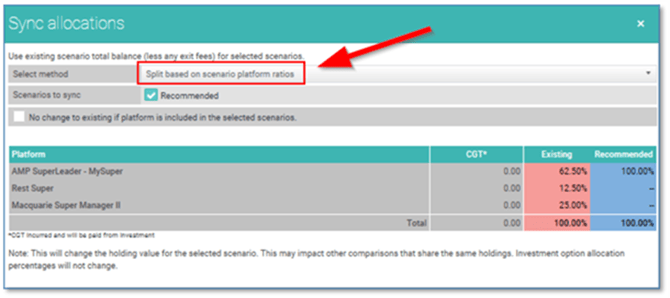
 Doing this will change the holding value for the selected scenario. It also may impact other comparisons that share the same holdings. The investment option percentage allocations will not change.
INPUTS
Comparison Details Page
The Comparison Details page is the main page used to perform a product-to-product analysis in Product Comparisons. It allows you to view your client’s existing platforms side by side along, with any recommended platforms.
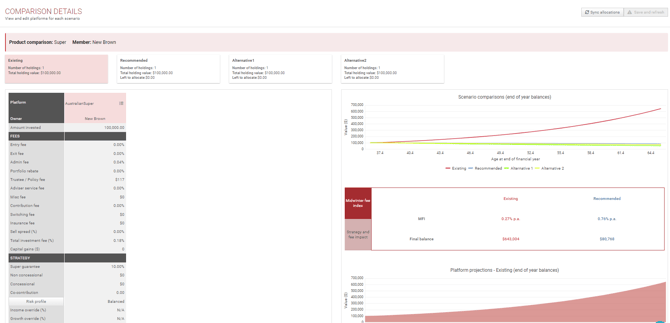
The Comparison Details page includes the following components:
- A listing of all of the existing, recommended and alternative platforms
- Functionality displaying all investments along with the ability to edit all options (access to portfolio builder) by clicking on the three dots icon next to the platform
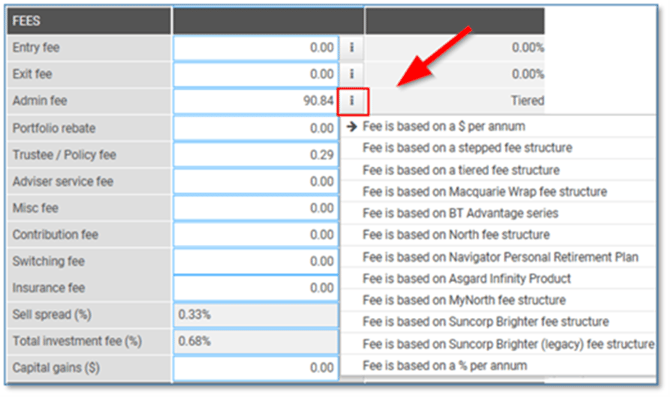
- Functionality to edit all fees by clicking on the fee amount field and clicking on the three dots button
- Functionality to edit income and growth through risk profile button on each existing, recommended, and alternative products
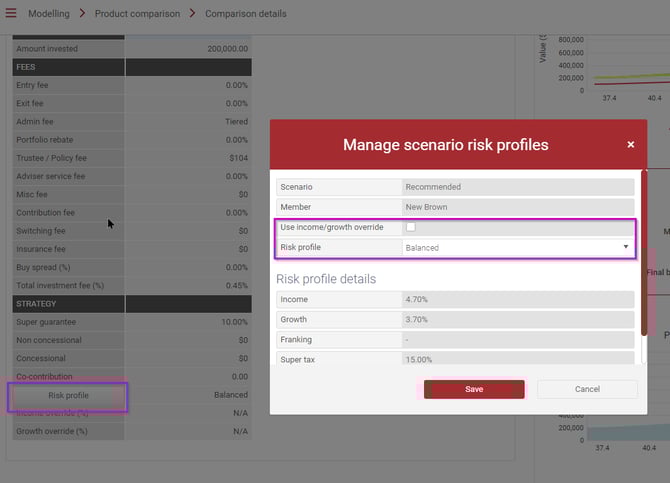
You can either use a different risk profile or override the income/growth rate.
 Overriding income/growth returns can be useful to use for example if your existing platform is cash investment
- Functionality to add non-concessional or concessional contribution as part of the projection

- Existing vs recommended projections, based on fees, strategy and risk profile
- MFI (Midwinter Fee Index) or average fee, which provides an indicative comparison fee regardless of the fee structures used by the platform
- A platform by platform investment value projection
- Functionality to display the projections in the present or future value
- A table showing a breakdown of the year on year projections
- Ability to change the projection end date
The screenshot below highlights the projection results that you can view on a more granular level.
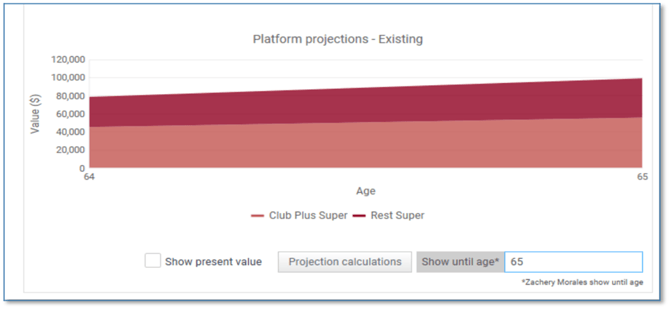
Click on “projection calculation” if you want to view more detailed calculation fees, taxes, balances, etc.
Editing platform and projection fees
You can edit platform fees by double-clicking next to one of the fees dialogue boxes for the platform you wish to edit. The field will change from grey to white for editing.
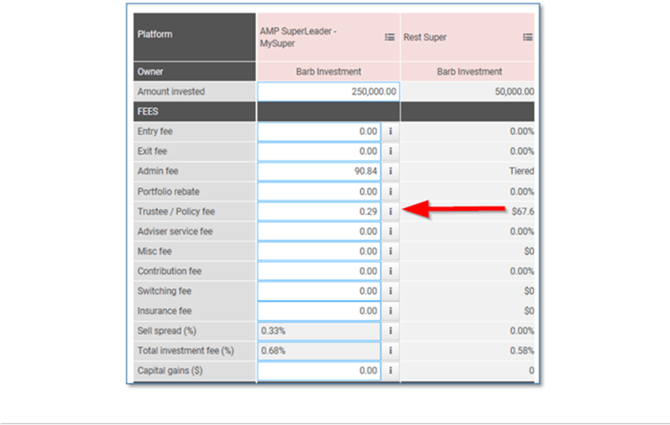
Selecting the information button allows you to select several commonly used fee structures.
Best Interest
The Best Interest page shows a breakdown of all key aspects of the product comparison. It's designed to assist advisers to identify products that best meet their client’s needs and support advisers to meet their best interest obligations by demonstrating the research of existing, recommended and alternative/hypothetical platforms.
There are other factors involved which are not specifically related to the product. These include the amount invested and contribution strategy.
To ensure a like for like comparison, the following best interest factors are compared:
- The same starting balance
- Transaction fees from disposing of all existing platforms
- How fees act with the change in portfolio value over time
- Cost of acquiring the compared platform
- Balance projection based on the same risk profile and contribution strategy inputs (determined by the select platform for strategy & risk profile drop down field).
- Features that are important to the client and their needs
- Projected balance at the end of the period
Note that the Best Interest section of PC provides a like for like comparison for each platform. This means that products can only be compared to other products on the same platform (ie super to super, pension to pension, investment to investment). This section cannot compare a super to pension, or pension to investment.
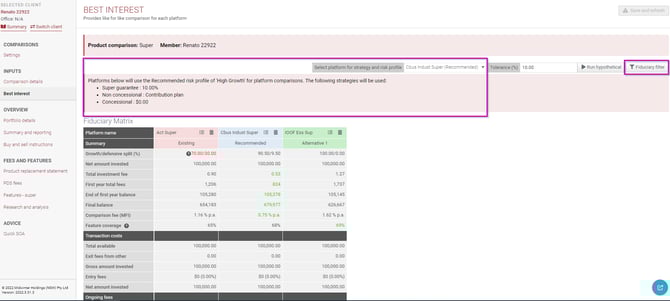
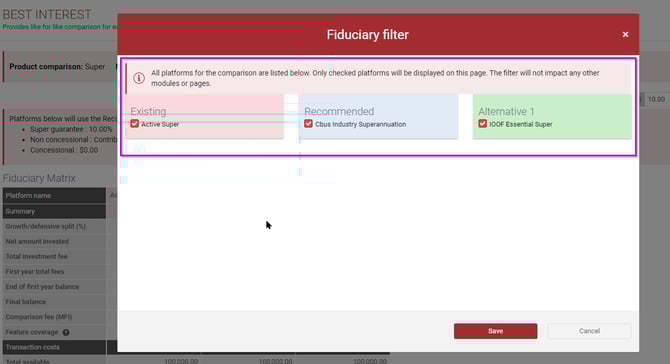
Users can choose which platforms they want to include or exclude in the fiduciary matrix table by clicking on fiduciary filter on the top right hand corner.
Overview
Portfolio Details
This screen will provide you with information in regards to your client's strategic asset allocation based on the investment options and client's risk profile.
You can do a comparison using your existing vs recommended product(s) or recommended vs alternative product(s).
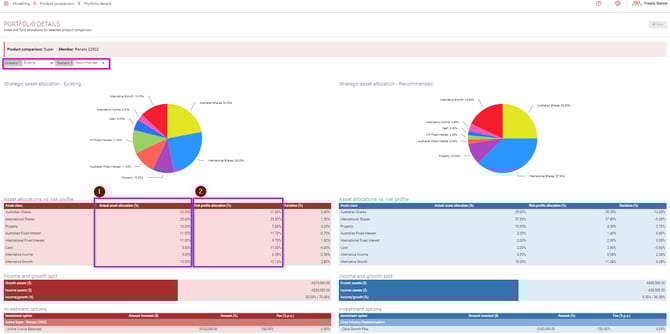
1) Actual asset allocation is based on the combination of the selected investment option
2) Risk profile allocations is based on the risk profile that was selected for the client
Summary and Reporting
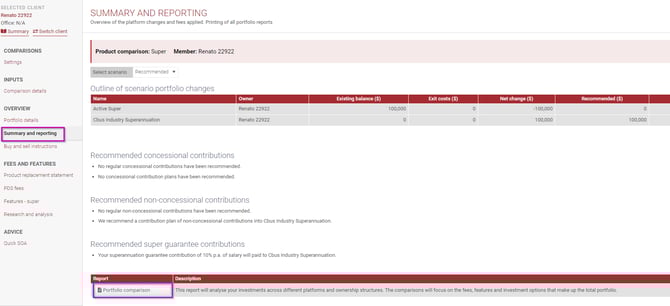
To run a report for your product comparison, please navigate to the summary and reporting section and then click on the portfolio comparison report at the bottom.
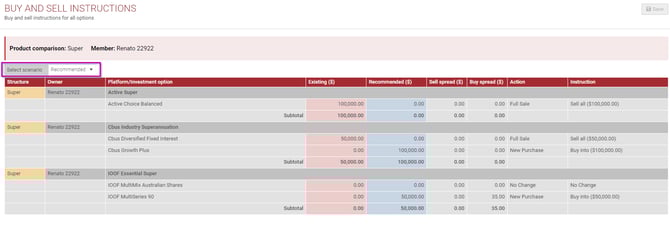
Buy and sell instructions
This section will provide the summary of the movement of funds (buy and sell) based on the settings page.
You can adjust the scenario to recommended or alternative summary.
Fees and Features
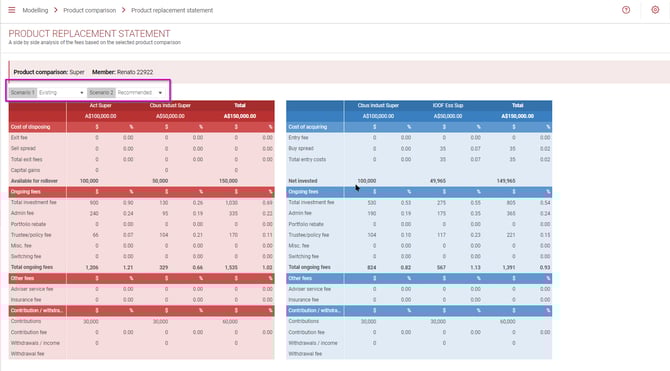
Product Replacement Statement
This section will provide you with fees on each platform that was entered from the settings page.
You can view different scenarios by changing the scenario 1 and 2.
PDS Fees
This section will provide you with a summary on how we calculated the fee based on the product disclosure statement (PDS).
 Features
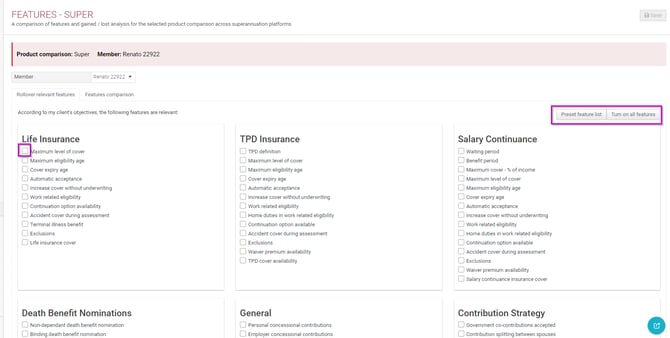
A comparison of features and gained/lost analysis for the selected product comparison across selected platforms.
User can choose the features that meet client's objectives for comparison.
There are three ways that user can do for making the selection :
- Manual selection by clicking on each specific feature(s)
- Turn on all features
- Use preset feature list
- For preset feature list, this will need to be setup beforehand under portfolio book / configuration / preset features.
Research and Analysis
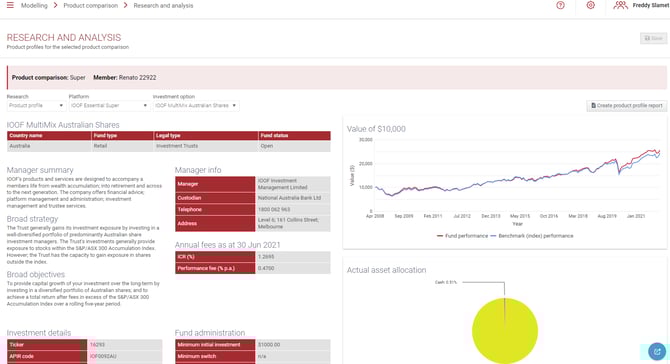
Users can access the morning star investment product profile in this section and are able to run the product profile if required.
 Please note that only investment products that thus APIR code will be available